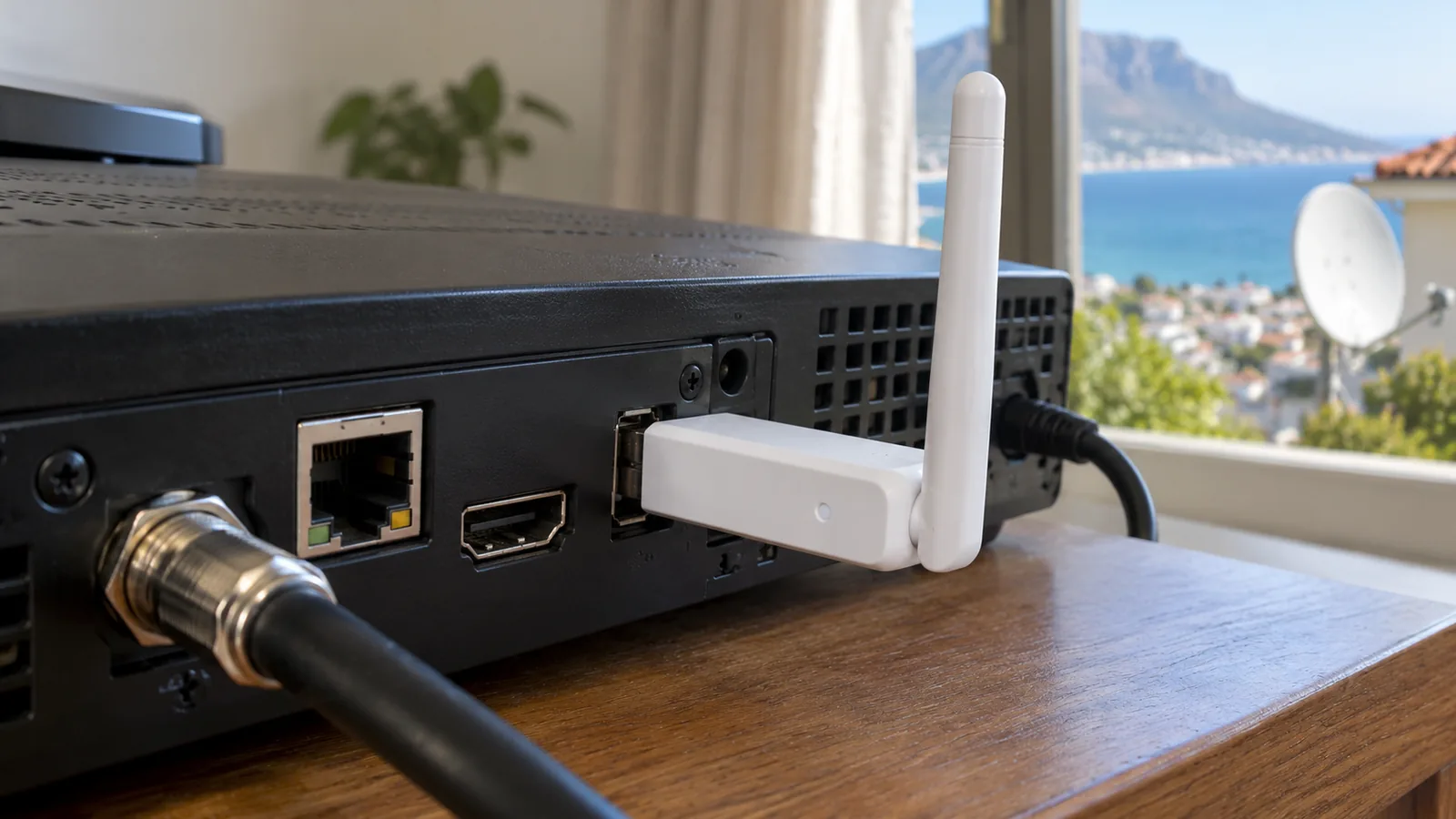
Your Explora sits in the lounge of a Simon's Town cottage, the fibre router lives in the study across the passage, and between them stands half a metre of old stone. That wall is the main reason people ask us how to connect Explora to internet without the picture freezing every ten minutes. This page walks you through the options, the steps and the faults we fix most often.
Quick answer
You can connect Explora to internet in three ways: a network cable from the router, the DStv WiFi Connector that plugs into the decoder's USB port, or the built-in WiFi on an Explora Ultra. In heritage homes with thick walls, a cable or a mesh WiFi point next to the TV is usually the most stable choice.
Why connect Explora to internet at all?
An Explora works fine on satellite alone. You get live channels and your recordings without any internet. The extras only appear once the box is online, and some of them are worth the effort.
- Catch Up: watch shows you missed without having set a recording.
- BoxOffice: rent a movie from the couch with the remote.
- Software updates: new menus and bug fixes arrive faster when the decoder can reach DStv online.
- Remote recording: set a recording from the app while you are out on the boat or at work in town.
- Streaming apps: on an Explora Ultra, apps such as Netflix run on the same box.
For a guesthouse on St George's Street, Catch Up alone can save the day when a guest missed last night's episode, and guest cottages often need their own WiFi link out to the cottage or outbuilding first. For a retired couple in Glencairn, BoxOffice beats a drive over the mountain to a video shop that no longer exists.
Three ways to connect Explora to internet in Simon's Town
Every home here is different. A new build in Castle Hill with open-plan rooms behaves nothing like a Victorian terrace in Simon's Town Central with walls you could hide a cupboard in. Pick the method that suits your layout, not the one that sounds most modern.
| Method | Best for | Watch out for |
|---|---|---|
| Network (Ethernet) cable | Router in the same room or a short run away | Cable must be routed neatly along skirting or through a wall |
| DStv WiFi Connector | Older Explora models with the router in another room | Struggles through stone walls and over long distances |
| Explora Ultra WiFi (built in) | Explora Ultra owners with good WiFi near the TV | Same wall problem, so the router or a mesh point must be close |
| Mesh unit plus short cable | Big or multi-level hillside homes | Costs more upfront, but fixes dead spots for every device |
Option 1: a straight network cable
This is the method we trust most when you connect Explora to internet. Plug one end into the Ethernet port on the back of the decoder and the other end into a free port on the router. Nothing else in the house competes with it, so it stays steady when the kids are gaming and the guests are video calling.
Option 2: the DStv WiFi Connector
The DStv WiFi Connector is a small white dongle that plugs into a USB port on the back of the Explora. It lets the decoder join your home network without a cable. It works well in an ordinary brick house with the router one room away. Explora WiFi through the connector is fine for Catch Up at that distance.
Option 3: Explora Ultra WiFi
The Explora Ultra has WiFi inside the box, so no dongle is needed. Explora Ultra WiFi is handy, but it still has to hear your router clearly. If the signal reaching the TV cabinet is weak, the box will buffer just like a phone would in the same spot.
Stone walls, steep stairs and WiFi in Simon's Town homes
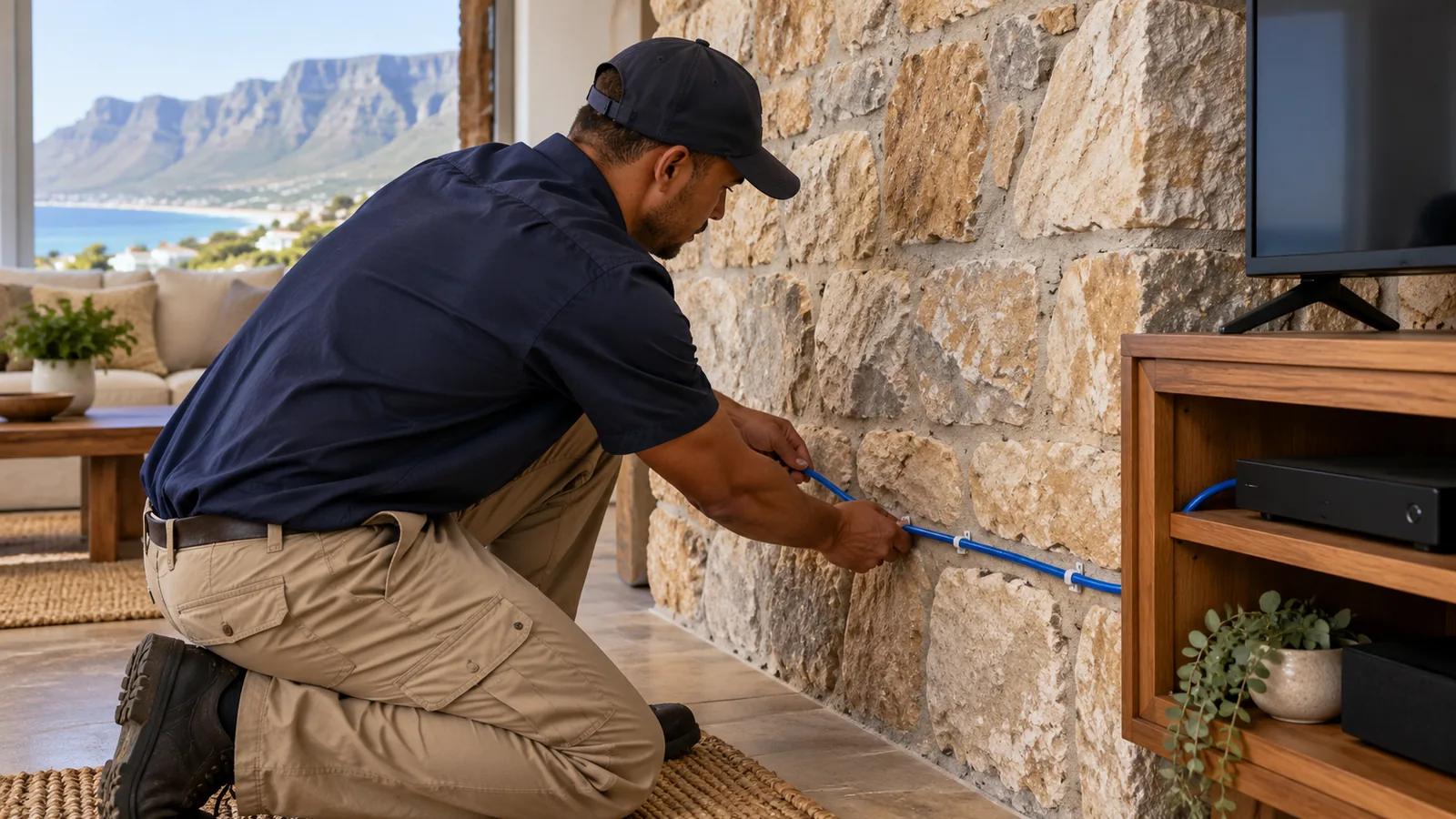
Many of the older houses near the harbour and up towards Boulders were built with thick stone or double brick. WiFi hates that. A router that covers a modern flat easily may barely reach the next room in a heritage cottage.
Hillside homes add another twist. Houses in Murdock Valley and Welcome Glen are often built on several levels, with the router downstairs and the TV upstairs, or the other way round. Each floor slab cuts the signal again.
Good to know
Before you buy anything, stand where the decoder lives and run a speed test on your phone using the home WiFi. If the phone struggles there, the Explora will struggle too. Solving that weak spot is the real job.
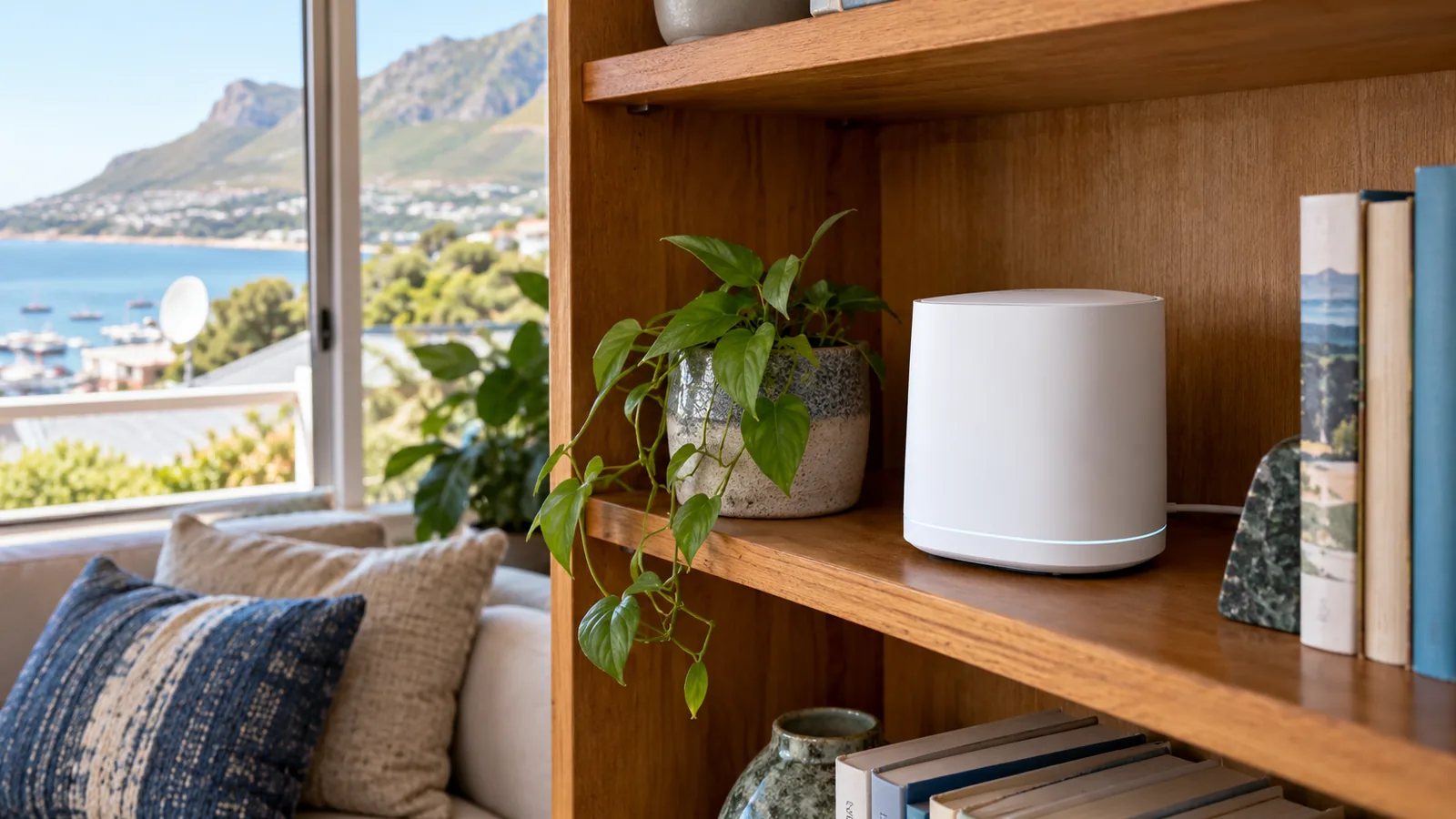
When the signal is too poor to connect Explora to internet reliably, you have three fixes: run a cable, move the router, or add a mesh WiFi point near the TV and plug the decoder into it with a short cable. Our WiFi and network setup service covers all three, and we test the speed at the decoder before we leave.
How to connect Explora to internet with a cable: step by step
Have your remote handy and make sure the router is on and the internet is working on another device first.
- Plug the network cable into the Ethernet port on the back of the Explora.
- Plug the other end into a free port on your router or mesh unit.
- On the remote, press the Help button, choose Tools, then Connectivity Checker.
- Look for two green ticks: one for the router and one for the internet.
- Press the blue DStv button, open Settings, then User Preferences, then Connected Services, and switch on the services you want.
That is all it takes to connect Explora to internet by cable. DStv also has an official walkthrough on connecting an Explora to the internet if you want the screens in front of you.
Need DStv help in Simon's Town?
Tell us what you need or what your screen shows. We price the job before we drive out.
Using the DStv WiFi Connector or built-in WiFi
Setting up the DStv WiFi Connector
- Place the connector next to the decoder, not on top of it, because heat and the metal case interfere.
- Plug its USB lead into the back of the Explora. A white light shows it has power.
- The setup wizard should open and list nearby networks. Pick yours with the arrow keys.
- Type your WiFi password with the remote, or use the WPS button on your router if it has one.
- Let the decoder test the connection, then switch on Connected Services.
Joining Explora Ultra WiFi to your network
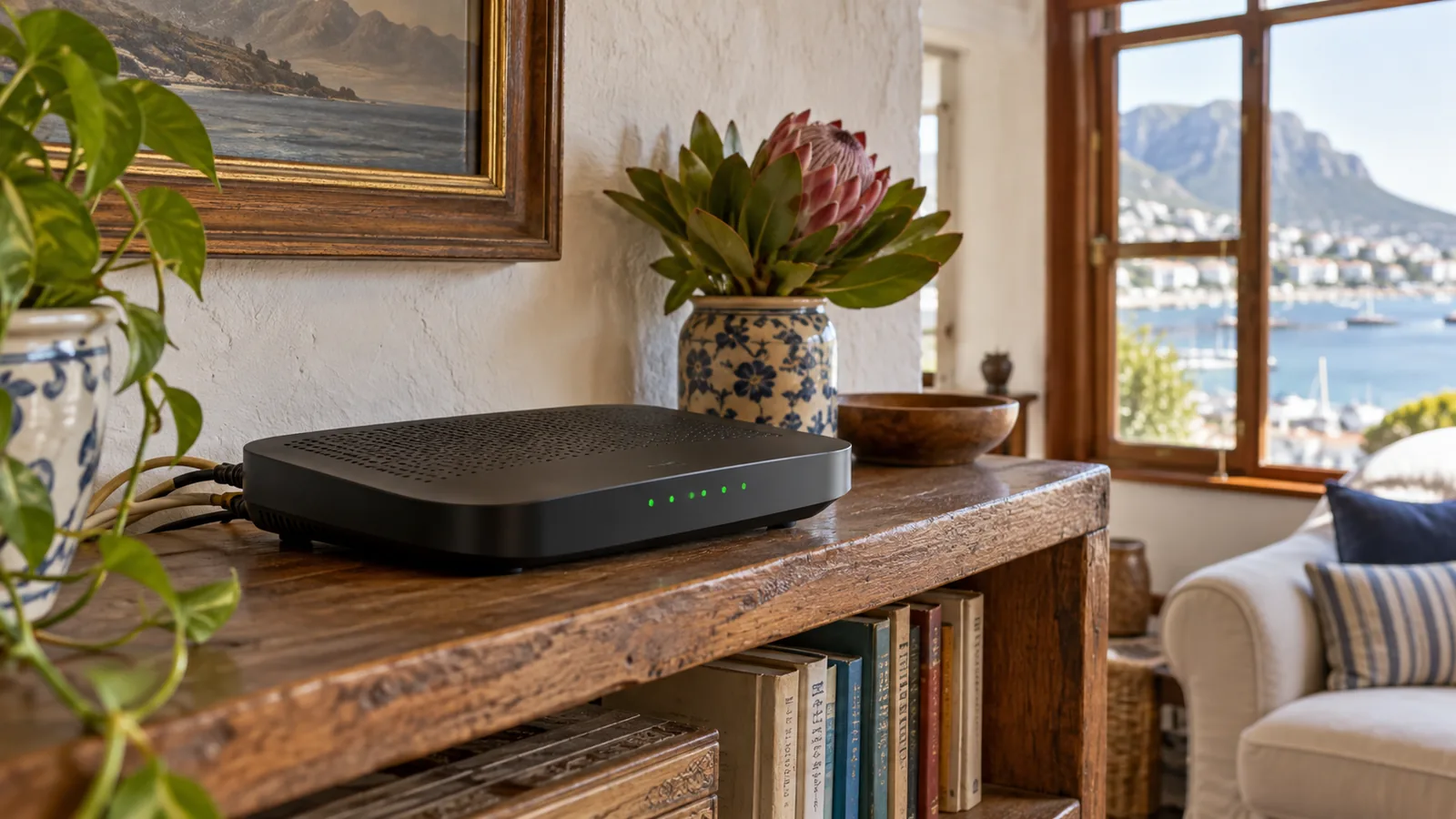
On an Ultra, go to Settings and look for the network or connectivity menu, choose your WiFi network and enter the password. A light on the front of the box shows the connection state. If it stays red, the box can see the network but cannot get online properly.
Technician tip
Name your WiFi something simple with no odd symbols, and keep the password free of characters that are awkward to enter on a remote. It saves a lot of frustration when you connect Explora to internet again after a router swap.
Faults when you try to connect Explora to internet
Most problems we see fall into a short list. Work through it before you call anyone. If the remote itself is ignoring you while you type the password, see our notes on a DStv remote not working in Simon's Town.
- No green tick for the router: check the cable is clicked in at both ends, or that the WiFi password was typed correctly.
- Router tick but no internet tick: the router itself is offline. Restart it and check other devices.
- Catch Up buffers all evening: the WiFi is too weak at the TV. A cable or mesh point fixes it.
- Works, then drops after load shedding: the router came back slower than the decoder. Restart the decoder once the router lights are steady.
- Explora WiFi menu shows no networks: the connector may be faulty or loose in the USB port. Try the other port.
- Capped data runs out fast: streaming and downloads eat data, so an uncapped line is the better fit.
Safety first
If a new cable has to go through a wall or along the ceiling, switch off power to the area and check for hidden wiring first. Heritage buildings can have old wiring in unexpected places. Drilling into one is a serious risk, so let a qualified person handle it if you are unsure.
If the decoder itself is the problem, for example an old model that never holds a connection, it may be time to look at a DStv decoder upgrade for Simon's Town homes rather than fighting it every weekend.
Getting good internet in Simon's Town to the TV
The quality of your line matters as much as the decoder. Fibre is the best partner for an Explora because it is fast and usually uncapped. Where fibre has not reached your street yet, a fixed wireless or LTE router can work, but watch the data use.
Wind and salt air are hard on outdoor gear here, and that includes wireless antennas on roofs in Da Gama Park and Glencairn. A loose or corroded antenna gives slow, patchy internet in Simon's Town homes that no decoder setting can fix.
- Fibre: best for Catch Up, BoxOffice and Ultra streaming apps.
- Fixed wireless: fine if the signal is strong and the package is uncapped.
- Mobile data on a phone hotspot: only for a quick test, not daily viewing.
Remember the satellite side still matters. The dish and the Smart LNB and what it costs feed your live channels and recordings, while the internet only adds the online extras. A good install needs both.
What you gain once your Explora is online
Once you connect Explora to internet properly, the box feels like a different machine. You stop planning your week around recordings and start picking from Catch Up. Guests in a holiday flat can rent a film on a rainy south-easter day without asking you for anything.
It also changes which package makes sense. If you mostly watch Catch Up and a few local channels, the Starter package that replaced DStv Access may be all you need. If you are still on an older single-view box and want these features, our Explora installation team can fit the decoder, Smart LNB and network link in one visit.
Let us connect your Explora in Simon's Town
If the stone walls are winning, we can help. Our DStv installers in Simon's Town run tidy cables, set up mesh points and connect Explora to internet so it stays connected after the next storm. We quote first and test everything with you before we leave. Book a visit with our Simon's Town team and tell us where your router and TV are.
connect Explora to internet in Simon's Town: FAQs
How do I connect Explora to internet without a cable?
Use the DStv WiFi Connector on an older Explora, or the built-in WiFi on an Explora Ultra. Plug the connector into a USB port, choose your network from the setup wizard and enter the password with the remote. The WiFi signal must be strong at the TV, so test it with your phone first. In stone-walled homes a mesh point near the TV helps a lot.
How do I connect Explora Ultra to internet using built-in WiFi?
The Explora Ultra has WiFi inside the box, so you do not need the separate DStv WiFi Connector. Open the settings menu, choose the network option, pick your WiFi name and enter the password with the remote. It also has an Ethernet port, which is the steadier choice if your router is close or a short cable can reach it.
Why will my Explora not connect to WiFi in Simon's Town?
In Simon's Town the usual reason is a weak signal at the TV, caused by thick stone walls or a router on another floor of a hillside home. Other causes are a mistyped password, a loose connector or a router that is offline. Run the Connectivity Checker under Help, then Tools, to see which link is failing.
Do I need internet for my Explora to work?
No. Live channels and recordings come through the satellite dish, so an Explora works without internet. You only need to connect Explora to internet for extras such as Catch Up, BoxOffice, remote recording and faster software updates. If you never use those, the box will still do its main job.
Can a technician connect Explora to internet for me in Simon's Town?
Yes. We visit homes in Simon's Town and nearby areas such as Glencairn, Boulders and Da Gama Park. We check the WiFi at the TV, run a cable or set up a mesh point where needed, connect the decoder and test Catch Up before we leave. We always give you a quote before driving out.